In today’s workplace, PDF has become the universal format for shared documents. Whether it’s contracts, papers, brochures, or user manuals, PDFs maintain their formatting across various devices. However, some PDFs may have incorrect page sizes. For example, you might receive an A4-sized document but need letter-sized; or the scanned document’s margins might be too large; or the presentation might not fit your printer or screen.
Therefore, learning how to change PDF page sizes is quite important for students, office workers, teachers, designers, and business professionals. Fortunately, there are many tools available to quickly handle this, among which JOPDF is a highly efficient and user-friendly option.
This guide will tell you:
- Why page size is important
- When you need to resize pages
- Detailed steps for resizing PDFs using JOPDF
- Alternative methods for resizing using computer software and online tools
- Tips for maintaining quality and layout
Why PDF Page Size Matters
Page size determines how your document will look when printed, displayed, and shared. Common page sizes include:
- A4 – Standard in most countries
- Letter – Standard in the US and Canada
- Legal – Contracts and legal documents
- Custom size – Presentations, brochures, posters
Incorrect page size can lead to:
- Content being cut off during printing
- Excessive margins
- Scaling distortion
- Poor reading experience on mobile devices
Therefore, knowing how to properly adjust PDF size can save time and paper, and prevent frustrating results.
Common situations where you need to adjust PDF size
- Printing for different regions—e.g., converting A4 paper to letter paper and vice versa.
- Preparing documents for publication—magazines and publishers often have specific page size requirements.
- Making PDFs display better on mobile phones or web pages.
- Merging multiple PDF files with inconsistent page sizes.
- Creating marketing materials with precise layout requirements.
The Easiest Method: Change PDF Page Size with JOPDF
What is JOPDF?
JOPDF is a powerful all-in-one PDF management platform designed to simplify document handling. It allows users to compress, convert, edit, merge, split, and resize PDFs with professional-level accuracy — all through an intuitive interface that requires no technical background.
Why Choose JOPDF for Page Resizing?
No complicated setup
Supports standard and custom page sizes
Preserves layout and formatting
Works directly in your browser
Suitable for beginners and advanced users
Step-by-Step: How to Change PDF Page Size Using JOPDF
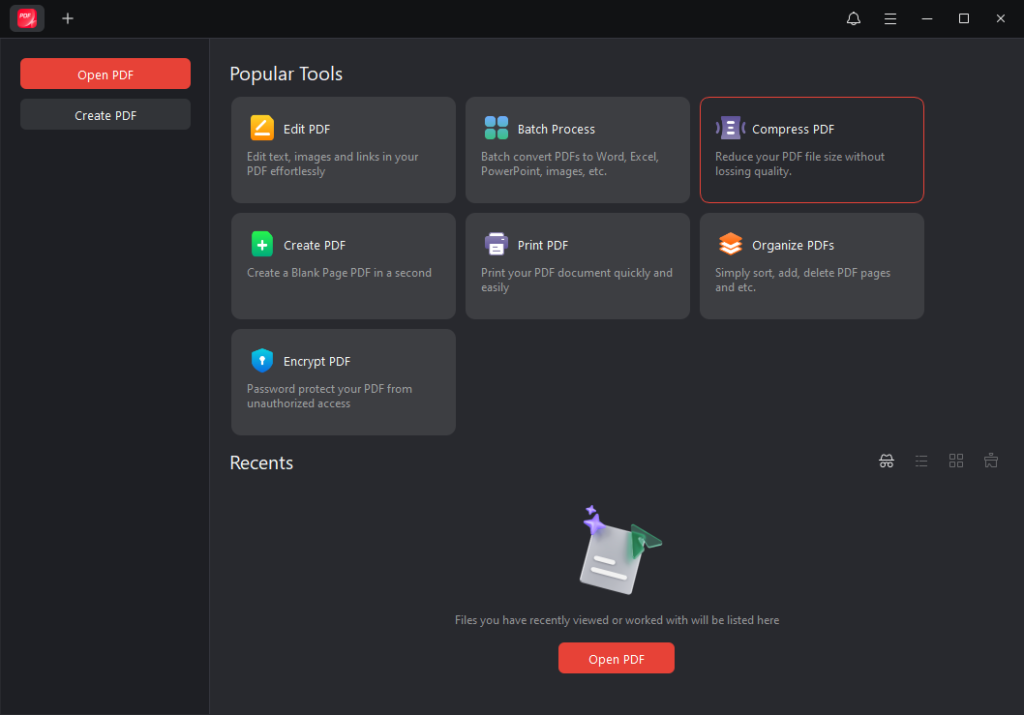
Step 1: Upload Your PDF File
Visit JOPDF and click the upload button or drag and drop your PDF file into the workspace to upload it.
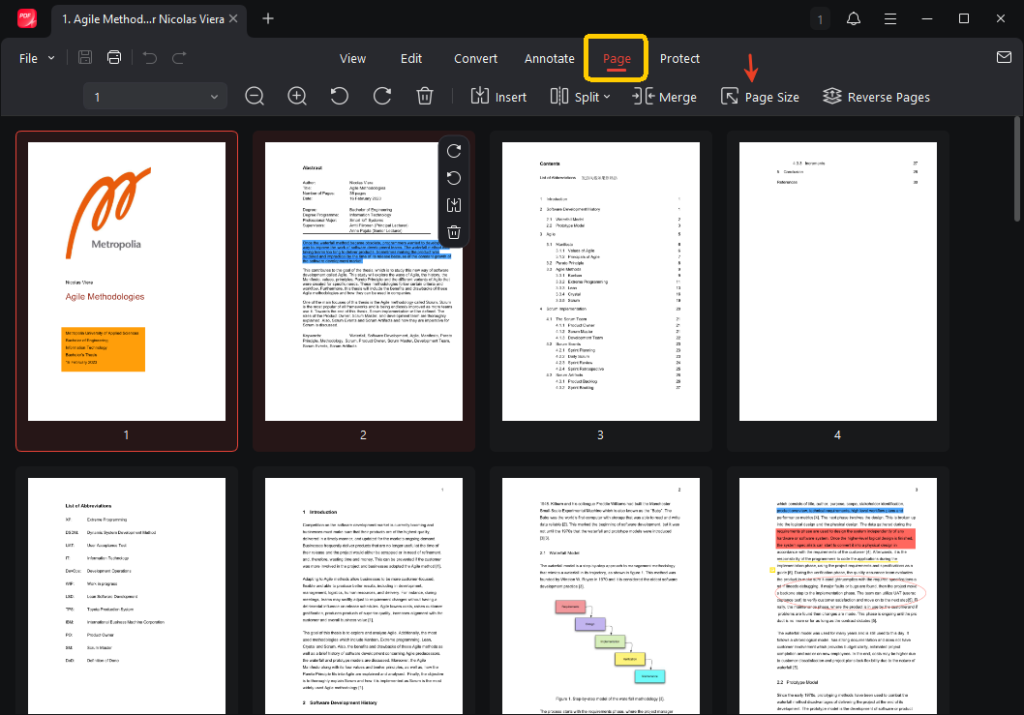
Step 2: Click the “Page” Option
Select the “Page Resizing” tool from the control panel.
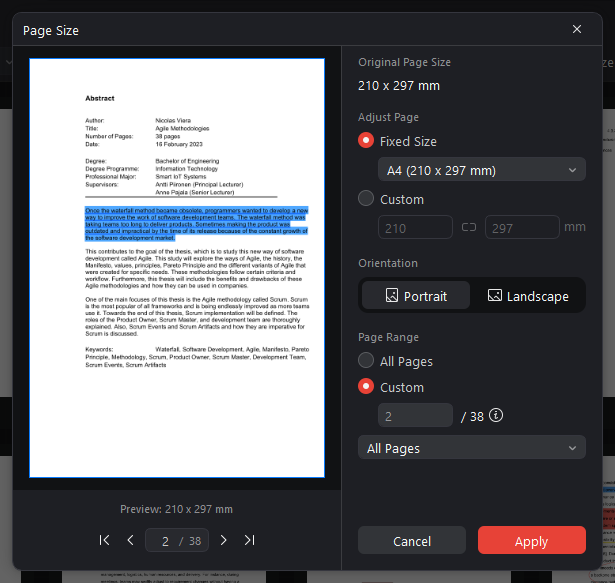
Step 3: Select the Desired Page Size
You can choose:
A4
Custom Width and Height
You can apply the changes to:
All Pages
Specific Pages Only
Change Orientation (Portrait/Landscape)
Step 4: Apply and Download
Click “Apply”. After a few seconds, the resized PDF file will download—the formatting remains unchanged, and the page size is exactly as specified.
JOPDF’s Advanced Features
JOPDF does more than just resize pages; it can also:
- Batch resize multiple PDFs
- Crop unnecessary margins
- Optimize files for easier printing
- Preview results before finishing
- Combine resizing and compression for smaller files
These features make JOPDF ideal for offices, schools, publishers, and content creators.
Other Methods to Change PDF Page Size
While JOPDF is the fastest solution, you can also try these methods.
Method 1: Using Adobe Acrobat
Adobe Acrobat allows you to adjust page size through print settings:
- Open your PDF file in Acrobat.
- Click “Print”.
- Under “Page Scaling”, select “Fit to Page” or “Custom Scaling”.
- Select the target page size.
- Print as a PDF and save the adjusted version.
Disadvantages:
- Requires a paid subscription.
- Relatively slow and more cumbersome.
- Limited batch processing capabilities.
Method 2: Using Microsoft Word
- Open PDF in Word
- Change page size under Layout
- Save as PDF
Drawbacks:
- Formatting loss is common
- Poor support for complex layouts
Method 3: Online PDF Resizers
- Various websites offer resizing tools, but many:
- Limit file size
- Add watermarks
- Have security concerns
- Lack customization options
This is where JOPDF remains the most balanced and reliable option.
Tips for changing PDF page sizes
- Previewing before saving is always a good idea.
- Lock the aspect ratio to prevent distortion.
- Before printing in bulk, print a single page to test the print quality.
- After resizing, compress the file for easier sharing.
- Use batch processing to ensure consistent formatting.
When is it best not to adjust the size of a PDF? If the PDF contains very detailed engineering drawings, text that is too small to read, or requires high-precision printing, then don’t adjust the size unnecessarily. In this case, redesigning the original document might be better.
Why Professionals Love JOPDF
Professionals choose JOPDF primarily because it:
- Saves time
- No formatting issues
- Simple file processing
- Works on all devices
- Easy to use, no learning curve
Whether you’re a teacher, student, designer, or company team, JOPDF works well for everyone.
In summary
Resizing PDF page sizes is something almost everyone has to do. There are many methods, but for speed, accuracy, and simplicity, JOPDF is the way to go.
Whether it’s converting A4 to Letter format, adjusting print margins, viewing on a mobile phone, or ensuring consistent file formatting, JOPDF can handle it all. It’s professional and easy to use.
Stop using those complicated software programs! Try JOPDF for easy control over your PDF files—fast, secure, and hassle-free!