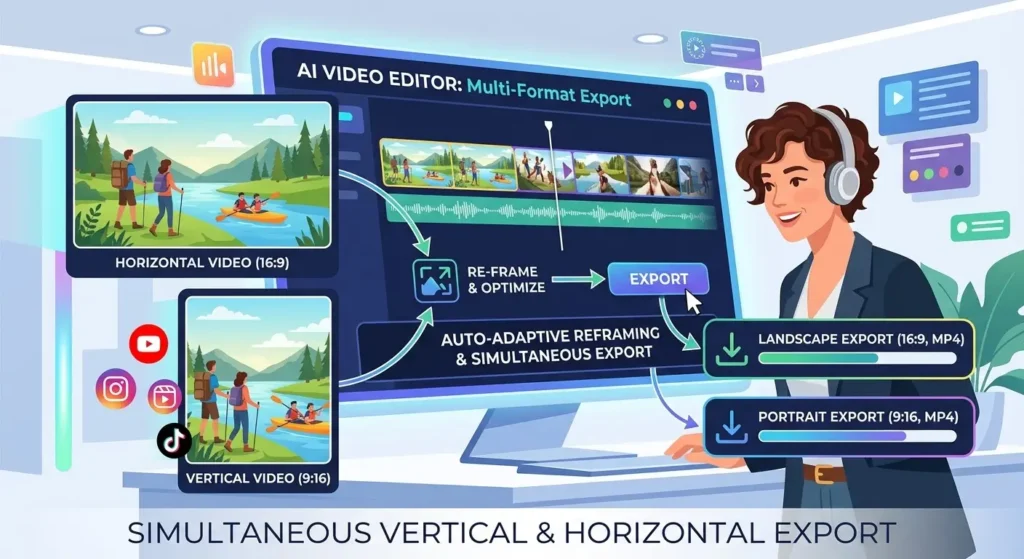
To export vertical and horizontal videos at once with an AI video editor, edit one master cut, then create reframed versions for each aspect ratio and export them together. Adobe Firefly’s AI video editor supports vertical, square, and horizontal formats, and your work can move into Premiere, where Auto Reframe creates new aspect ratios.
If you post the same video to YouTube, TikTok, Instagram, and LinkedIn, you’ve probably rebuilt it more than once. A horizontal 16:9 cut works for YouTube, but Reels, TikTok, and Shorts want vertical 9:16, and some feeds prefer square. Cropping each version by hand is slow, and it’s easy to cut off a speaker’s face or a caption. The quickest workflow is to edit once, let AI handle the reframing, and batch your exports.
Is There an AI Auto Reframe Video Editor for Horizontal and Vertical Versions Simultaneously?
Yes. AI auto reframe tools track the subject of each shot, such as a face or a moving object, and crop the frame to keep it centered in a new aspect ratio. That lets one horizontal edit become a vertical version without manual keyframing.
Within Adobe’s tools, Premiere’s Auto Reframe feature analyzes a full sequence and creates a duplicate in the target aspect ratio, such as 9:16, 1:1, or 16:9. You can choose a motion tracking setting for slower or faster footage, then adjust the framing of any clip that needs a nudge. Because Firefly is built to hand off to Premiere, you can build your edit in the Firefly video editor and reframe it there.
Some repurposing tools go a step further. OpusClip’s resize tool says it can batch-resize a single MP4 into 9:16, 1:1, 16:9, and 4:5 at the same time.
How Does an AI Video Editing Tool Create Vertical and Horizontal Versions Simultaneously?
An AI video editing tool creates vertical and horizontal versions simultaneously by working from one master edit and applying reframing to copies of it. The setup you do before reframing makes a big difference.
Shoot and edit with both crops in mind: Keep your subject near the center of the frame and leave room above and below, so a vertical crop doesn’t cut off heads or hands.
Keep text in the safe zone: Place titles and captions near the center, or add them separately to each version after reframing.
Generate clips at the right shape: When you generate new B-roll in the Firefly video editor, you can set the aspect ratio before generating, so added footage fits your target format.
Reframe, review, and export: Create each aspect ratio version, scan for awkward crops, and export them in one batch.
Which AI Video Repurposing Tool Can Generate Vertical and Horizontal Clips Simultaneously?
An AI video repurposing tool turns long videos, such as podcasts, webinars, or interviews, into short clips sized for different platforms. The best ones generate vertical and horizontal clips simultaneously so you’re not exporting each one by hand.
OpusClip combines AI clipping with its ReframeAnything model, which tracks moving speakers and objects and reframes clips to 9:16, 16:9, or 1:1. It also adds captions and B-roll, which suits creators who publish many short clips each week.
Adobe Firefly approaches repurposing from the editing side. Its video editor includes Quick Cut, which can assemble a first draft from your footage, and Text-Based Editing, which lets you cut interviews and podcasts by editing the transcript. From there, you can refine the story, add titles, voiceover, and music, and create your platform versions.
What’s the Best AI Tool to Auto Reframe Vertical, Horizontal, and Multiple Aspect Ratios?
The best AI tool to auto reframe vertical, horizontal, and multiple aspect ratios depends on whether you start from a polished edit or a long recording. The table below compares three options.
| Platform | Best for | Key details |
| Adobe Firefly video editor | Building and polishing an edit with AI help | Edits vertical, square, and horizontal social formats; multi-track timeline; Quick Cut and Text-Based Editing; generates new clips at a chosen aspect ratio; moves into Premiere; desktop Chrome browser, currently in beta |
| Premiere Auto Reframe | Reframing a finished sequence with fine control | Creates a new sequence in 9:16, 1:1, 16:9, or other ratios; motion tracking settings; adjustable framing per clip |
| OpusClip | Turning long videos into many short clips | AI clipping and ReframeAnything tracking; 9:16, 1:1, 16:9, and 4:5 presets; captions and B-roll |
For a single campaign video, editing in Firefly and reframing in Premiere keeps everything in one Adobe workflow. For a weekly podcast you want to slice into dozens of clips, a dedicated repurposing tool may save more time.
FAQ
Which aspect ratios do I need for each platform?
Vertical 9:16 is standard for TikTok, Instagram Reels, and YouTube Shorts. Horizontal 16:9 fits standard YouTube videos. Square 1:1 and 4:5 work well in many social feeds.
Can I use my own footage in the Firefly video editor?
Yes. You can combine your uploaded footage, AI-generated clips, and Adobe Stock assets on a multi-track timeline, then add text, voiceover, soundtracks, and sound effects.
Can I use videos made in Firefly for commercial projects?
Adobe says the Firefly Video Model is trained on licensed and public domain content, making it safe for commercial use. Partner models available in Firefly may have different usage terms, so check before you publish.