I used to wait until something broke before I even thought about drivers. If my system seemed fine, I’d just leave them alone. Turns out, old drivers can mess with your computer’s stability and cause compatibility issues even if you don’t notice anything wrong right away. That’s what pushed me to search for a tool that could handle updates automatically. Once I tried Driver Booster, updating everything became so much easier—no more tedious manual checks.
Why I Switched to Automatic Driver Updates
For a long time, I thought updating drivers was just something tech nerds fussed over. Windows seemed to handle everything in the background, so I pretty much ignored it. My computer ran fine, so I figured everything was working the way it should.
But over time, I started to realize hardware manufacturers roll out new drivers all the time—not just because they feel like it, but to keep things smooth, fix bugs, tighten security, and make your devices work better. Turns out, there’s a lot going on behind the scenes.
Honestly, the real pain was trying to keep up with all those updates myself. My PC’s got parts from all sorts of brands—graphics, audio, networking, Bluetooth, whatever. So keeping drivers up to date meant hopping from website to website, digging around for the right files, and hoping I didn’t miss anything. Sometimes I’d grab the wrong download, or skip an update that was actually important.
And yeah, after a few Windows updates, weird little glitches started popping up. Nothing major, but enough to remind me that old drivers can mess with reliability, piece by piece. I got sick of chasing updates, so I just automated the whole process. Now, taking care of drivers is part of my regular routine—but it’s way less stressful, and my computer feels a lot sturdier for it.
Why I Chose Driver Booster for Automatic Driver Updates
Simple Installation and User-Friendly Interface
After deciding that manual driver updates were no longer practical, I looked for a tool that could simplify the process. I chose Driver Booster because it was easy to install and had a clean, intuitive interface. Within minutes of launching the software, I was able to scan my computer without any complicated setup.
One-Click Driver Updates
One feature that immediately stood out was the ability to update multiple drivers with a single click. Instead of visiting different hardware manufacturers’ websites and downloading drivers individually, I could install the latest compatible versions through one simple process. This saved both time and effort.
Automatic Scanning and Driver Detection
Another reason I selected the software was its automatic scanning capability. It quickly detected outdated, missing, and faulty drivers across my system, including graphics, audio, network, Bluetooth, and chipset drivers. Having everything displayed in one place made it much easier to manage my PC.
Restore Point Before Updates
Before installing new drivers, the software automatically creates a restore point. I found this especially reassuring because it provides an easy way to revert changes if an update doesn’t work as expected, making the update process much safer.
Reduced Maintenance Effort
After using these features, I realized the biggest advantage wasn’t just updating drivers—it was reducing the amount of maintenance my computer required. Instead of manually checking for updates every few weeks, I could rely on the software to help keep my drivers current and my system running smoothly.
How I Set Up Automatic Driver Updates
Setting up Driver Booster only took a few minutes and made driver maintenance much easier. Here’s how I did it:
1. Download and Install: I downloaded Driver Booster from the official IObit website and completed the installation by following the on-screen instructions.
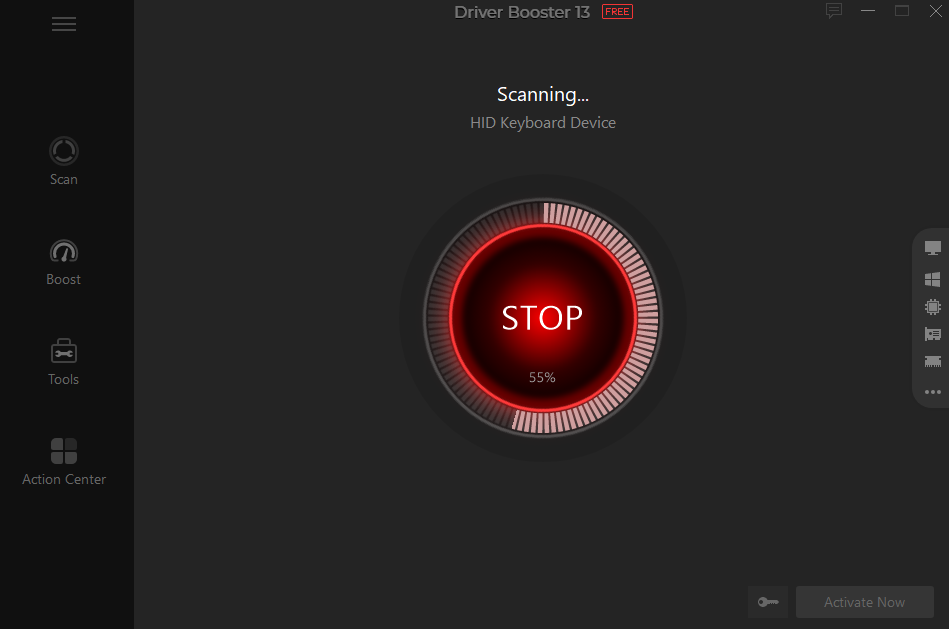
2. Run a System Scan: After launching the software, I clicked Scan. It quickly checked my PC for outdated, missing, and faulty drivers across major hardware components.
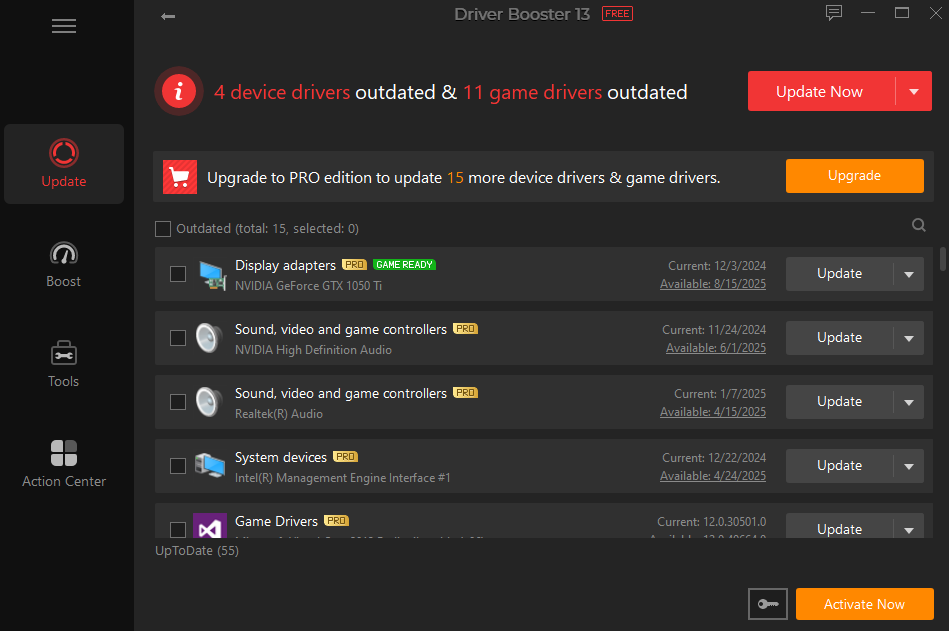
3. Update the Drivers: I reviewed the scan results and used the Update Now option to install the latest compatible drivers without searching multiple manufacturer websites.
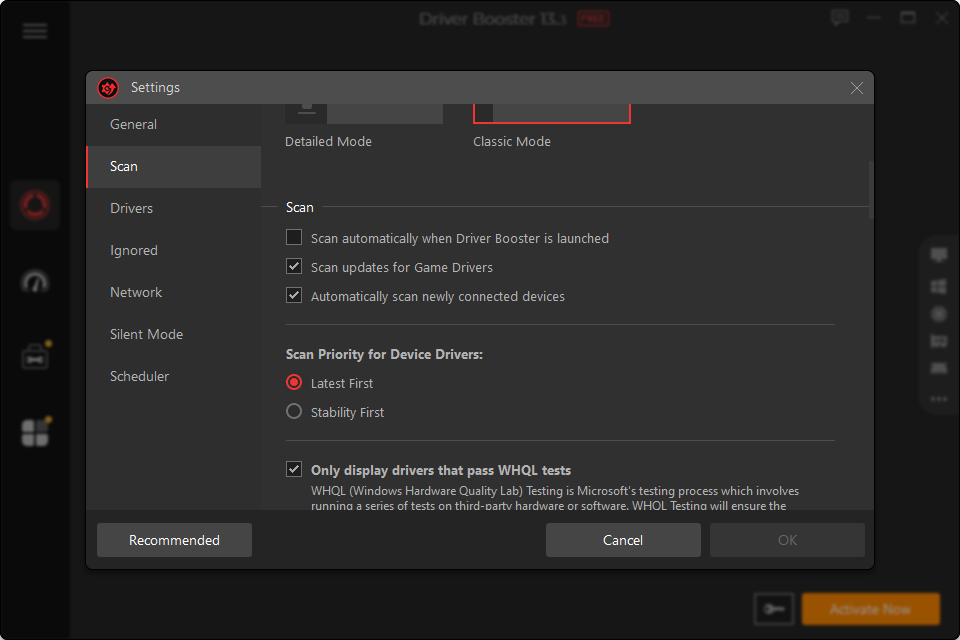
4. Enable Automatic Updates: Next, I enabled automatic driver updates so the software could detect new driver releases and notify me whenever updates became available.
5. Restarting the PC: Finally, I restarted my computer to apply the updates. After that, the software handled routine driver maintenance in the background, allowing me to focus on my work instead of manually checking for updates.
How Automatic Updates Changed My PC Maintenance Routine
The real game-changer wasn’t that my computer felt faster—it was that I stopped worrying about drivers altogether. Before, I’d only think about updating them if something broke, or if I stumbled across news about new hardware. Now, everything happens in the background, so I’m not always playing catch-up.
Automatic updates also made me relax a little after Windows updates. I didn’t have to wonder if some outdated driver would mess things up. My hardware stayed current, so there were fewer surprises and my setup just felt more stable.
It also saved me a bunch of time. I used to hunt for driver downloads, compare version numbers, and install everything myself. Now, one interface handles all of that—it turned an annoying, once-in-a-while chore into something I barely notice.
Honestly, the best part isn’t just the convenience. What really matters is knowing that my system is getting the latest, compatible drivers, which keeps things running smoothly and lets me focus on work, not maintenance.
Final Thoughts
Switching to Driver Booster really changed how I handle my computer’s upkeep. I don’t have to hunt down driver updates anymore—now the program just scans and updates everything for me. One click, and it’s done. It pulls from a big driver database, and I like that it creates restore points too, just in case. Honestly, if you’d rather use your PC than waste time managing drivers, letting a driver updater automate the work keeps everything stable and compatible with zero hassle.